Introduction
Configuration
InputActions is configured through a YAML configuration file. There are no plans to add a UI in the future.
Important
Breaking changes may be introduced at any time, they will be announced in pull requests and in the release changelog.
Important
If a configuration renders the session unusable, the emergency key combination (backspace+space+enter in any order) can be held for 2 seconds to suspend InputActions until the next config reload. A notification will be sent when triggered.
Configuration file path
File candidates (highest priority to lowest):
~/.config/inputactions/config-debug.yaml(debug builds only)/etc/inputactions/config.yaml~/.config/inputactions/config.yaml(created if not present)
If write access to the configuration file by unprivileged programs is not desired, choose the /etc/inputactions/config.yaml file.
Note
The configuration path is only chosen when inputactions-client is started (standalone implementation) or the compositor plugin is loaded
(compositor plugin implementations).
Reloading
By default, the configuration is reloaded automatically when the file is modified and a notification is shown when there is an error. To reload the configuration manually, run inputactions config reload.
Issues
The inputactions config reload and inputactions config issues commands will show detailed information about any issues with the configuration - errors,
deprecated features and unused properties.
First trigger
All configuration for specific device types is located in the keyboard, mouse, pointer, touchpad and touchscreen root nodes. Triggers are defined in the
gestures property of the those nodes.
This trigger will launch dolphin if you swipe three fingers to the right.
touchpad:
  gestures:
    - type: swipe
      direction: right
      fingers: 3

      actions:
        - command: dolphin
More information about this particular trigger can be found at TouchpadSwipeTrigger. It inherits properties from TouchpadTrigger, which in turn inherits from Trigger. Same goes for the action - CommandAction. Inheritance is mentioned in the table at the beginning of a page.
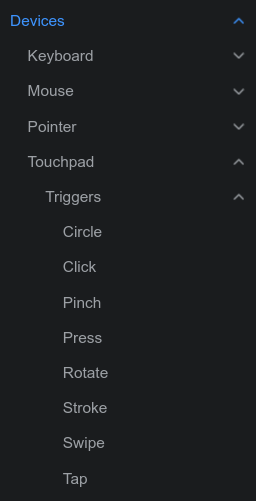
The list of triggers for a specific device type may be found at Devices -> [device] -> Triggers.
Action events
The on property of actions allows you to control at which point of the trigger’s lifecycle it should execute. The default
value is end. Set it to begin if you want to execute an actions as soon as the trigger begins.
To create a repeating action, set on to update and specify the repeat rate in the interval property.
touchpad:
  gestures:
    - type: swipe
      direction: up
      fingers: 3

      actions:
        - on: update
          interval: 10
          input:
            - keyboard: [ volumeup ]
Note
Available action events for a given trigger are mentioned in the table at the top of the trigger’s page. Some triggers do not support certain events.
Complex triggers
Complex triggers will require multiple actions that execute at different points of the trigger’s lifecycle. Here is an example three-finger window drag trigger.
- type: swipe
  direction: any
  fingers: 3

  actions:
    - on: begin
      input:
        - keyboard: [ +leftmeta ]
        - mouse: [ +left ]

    - on: update
      input:
        - mouse: [ move_by_delta ]

    - on: end_cancel
      input:
        - keyboard: [ -leftmeta ]
        - mouse: [ -left ]
Conditions
To make a trigger eligible for activation only if certain criteria are met (finger count, window class and much more), set the conditions property.
touchpad:
  gestures:
    - type: swipe
      direction: right
      fingers: 3

      conditions:
        - $window_class == firefox

      actions:
        - input:
            - mouse: [ forward ]
It is also possible to set conditions on actions, though input will be blocked even if no action is eligible for execution.
Note
Overusing action conditions will make the configuration a mess full of duplicate conditions. Prefer trigger conditions instead, which can be specified in a trigger group (will be mentioned later) to reduce duplication.
See Condition for more information.
Bidirectional triggers
Changing the direction does not cause trigger activation. The following configuration will not allow for changing direction without lifting fingers.
- type: rotate
  direction: clockwise

  # ...

- type: rotate
  direction: counterclockwise

  # ...
To create triggers with two repeating actions depending on the direction, set direction to a value that allows multiple directions (explicitly stated in
the property’s description).
- type: rotate
  direction: any

  actions:
    - on: update
      interval: -10 # counterclockwise
      input:
        - keyboard: [ volumedown ]

    - on: update
      interval: 10 # clockwise
      input:
        - keyboard: [ volumeup ]
Conflicting triggers
At some point you may run into a situation where you want a global trigger that does x, and a local one for program y that does z. The first solution that may come to your mind is this:
# Global
- type: ...
  conditions:
    - $window_class != program

  # ...

# Local
- type: ...
  conditions:
    - $window_class == program

  # ...
This will very quickly become a big mess. Instead, you should rely on the behavior that the first trigger to execute an action will cancel all other triggers, and triggers are updated from top to bottom. This is a simplification, see Conflict resolution for a detailed explanation.
The proper solution is:
# Local
- type: ...
  conditions:
    - $window_class == program

  # ...

# Global
- type: ...
  # No window_class condition
YAML anchors
Anchors can be used to define values (mouse trigger button, strokes etc.) once and reuse them thorough the configuration.
&name- Define (can be done anywhere)*name- Reference (must be defined first above the reference)
The merge operator << is not supported.
anchors:
  - &mouse_stroke_button [ back ]
  - &stroke_up [ 'MGQA0DMnPMwwAGQA' ]
  - &stroke_left [ 'ZDIAnQAxZAA=' ]
  - &stroke_down [ 'MAAAMTNkZAA=' ]
  - &stroke_circle_clockwise [ 'PgwAAE8LBRldGgwpZDEUN19LHUhTWSNgMl0uphJTObUERj/JAChJ2gUaT/AaDVf7QAZkAA=='  ]
  - &stroke_circle_counterclockwise [ 'UQsAojwHBl0mDA1UFBYTSgcjGT8AMx8yAEEjIgpWKhEXXi8CKl81+UBaPO9YS0XiZDtLzGInUbtZGVayRAhfpTUEZAA=' ]

mouse:
  gestures:
    - type: stroke
      strokes: *stroke_up
      mouse_buttons: *mouse_stroke_button
      # ...
Trigger groups
Trigger groups apply a set of properties to all triggers specified in the gestures property of the group and can be nested.
Conditions are merged into an all: condition group consisting of the group’s and the trigger’s condition.
anchors:
  - &mouse_stroke_button [ back ]
  - &stroke_up [ 'MGQA0DMnPMwwAGQA' ]
  - &stroke_down [ 'MAAAMTNkZAA=' ]

mouse:
  gestures:
    - conditions:
        - $window_class == firefox
      gestures:
        # Firefox triggers
        - type: stroke
          mouse_buttons: *mouse_stroke_button

          gestures:
            # Stroke triggers
            - strokes: *stroke_up
              actions:
                - input:
                    - keyboard: [ leftctrl+t ]

            - strokes: *stroke_down
              actions:
                - input:
                    - keyboard: [ leftctrl+n ]

        # Other Firefox triggers
        - type: press
          mouse_buttons: [ extra7 ]

          actions:
            - input:
                - mouse: [ back ]

    - conditions:
        - $window_class == VSCodium
      gestures:
        # VSCodium triggers
        - type: stroke
          mouse_buttons: *mouse_stroke_button

          gestures:
            # Stroke triggers
            - strokes: *stroke_up
              actions:
                - input:
                    - keyboard: [ leftctrl+pageup ]

            - strokes: *stroke_down
              actions:
                - input:
                    - keyboard: [ leftctrl+pagedown ]
Chaining triggers
The last_trigger_id variable contains the ID of the last trigger. You can use it to have a trigger activate only if another specific trigger had been
performed immediately prior.
- type: hold
  fingers: 2
  id: hold_2

- type: swipe
  direction: right
  fingers: 3

  conditions:
    - $last_trigger_id == hold_2

  actions:
    # ...
If you want to be able to perform the swipe trigger multiple times without holding every time, you can set set_last_trigger: false on the swipe trigger and
it will not set the last_trigger_id variable anymore.
There is currently no convenient way to chain more than two triggers.